
Embedded Widget
With the Seven Senders Portal, you can create and customize a responsive tracking widget and embed it directly into your webshop. This allows you to proactively inform your customers about the current status of their orders.
Designing an Embedded Widget
Creating Your First Embedded Tracking Widget
- Navigate to Touchpoints in the main navigation bar.
- Click Tracking in the left sidebar.
- Open the Embedded Widgets tab.
If no widget has been created yet, click Create your first embedded widget in the top-right corner.
Next:
- Select the language of your tracking widget. Choose the language that matches your webshop audience.
- Click Next.
- Enter a name for your widget.
- Click Create your embedded widget.
Note: The widget name is internal and will not be visible to customers.
Adding and Customizing Modules
Each tracking widget consists of smaller customization modules (referred to as widgets). You can find available modules in the left sidebar under the Widgets tab.
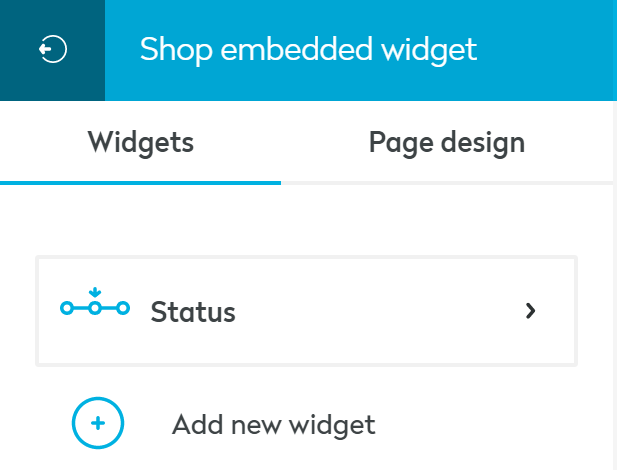
To configure a module:
- Click the module you would like to customize.
- To return to the module overview, click the icon in the top-left corner.
Additional options:
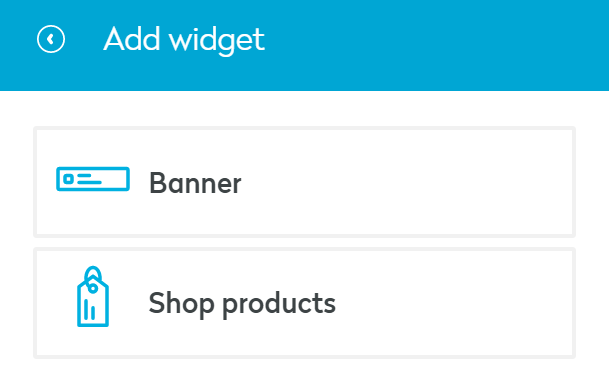
- Click Add new widget to add more modules.
- Drag and drop modules to change their order.
- To delete a module, open its settings and click Remove widget.
Estimated Time of Arrival (ETA)
The Estimated Time of Arrival (ETA) can be displayed in the embedded tracking widget. It can be enabled or disabled in the Status section.
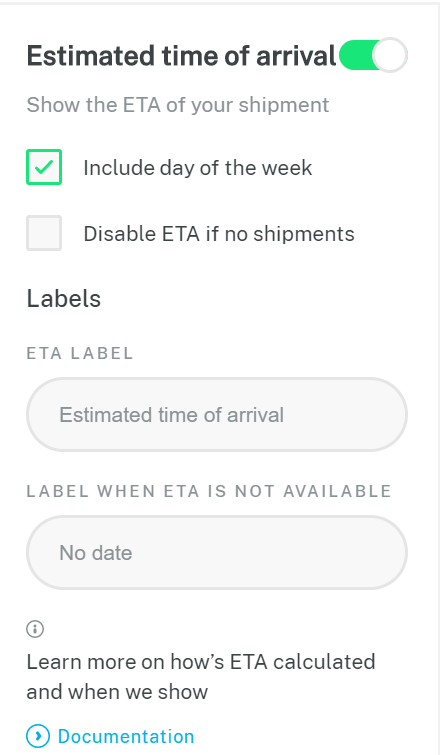
How is the ETA calculated?
Scenario 1: Order created
- If an order is created in the Seven Senders Portal and a Promised Delivery Date is provided at order level, this date is displayed as the ETA.
Scenario 2: Shipment created + First Hub Scan
- Once a shipment is created and a First Hub Scan event occurs, the ETA is calculated as:
ETA = First Hub Scan Date + SLA Days
SLA Days refer to the Service Level Agreement days configured in the shop settings.
This means: The ETA equals the timestamp of the first scan at the last-mile carrier’s hub (shipment event: “First Hub Scan”) plus the configured SLA days for the responsible carrier. If you have not yet configured SLAs, please refer to: Managing Service Level Agreements
Styling Options
All design settings can be found under the Page Design tab.
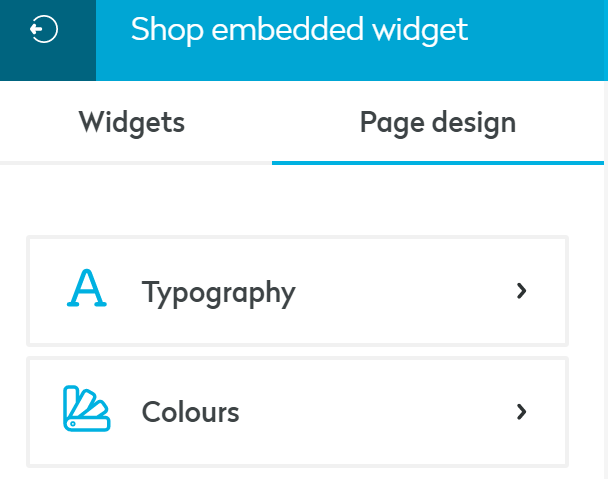
Here, you can:
- Define font types and sizes
- Adjust icon styles
- Set brand colors for all tracking page elements
This allows you to fully align the widget with your brand’s look and feel.
Supported Google Fonts: The Embedded Tracking Widget supports the following fonts:
- Roboto
- Open Sans
- Lato
- Montserrat
- Roboto Condensed
- Source Sans Pro
- Oswald
- Raleway
- Merriweather
- PT Sans
- Roboto Slab
- Noto Sans
- Poppins
- Ubuntu
Customizing Order and Shipment Statuses
If you would like to modify the default messages displayed for order or shipment statuses, including the timeline, you can do so via the Event & Content Library. You can create fully customized messages and adapt them to any supported language. Below you can find a common example:
Default Message:
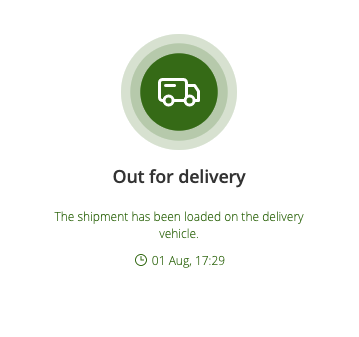
Customized Message
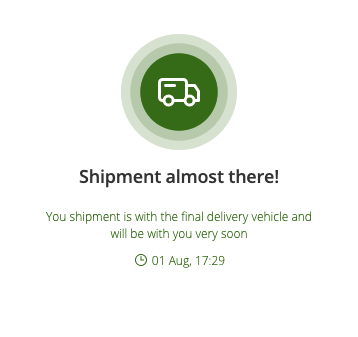
How to Create a Customized Message
- Navigate to Event & Content Library in the side menu
- Select the desired language (top right)
- Locate the event you want to customize
- Click Edit
- Update the message and click Save
To revert back to the default message, click Reset to Default.
Publishing Your Tracking Page
Until published, your tracking page remains in draft mode. When you are ready to make it live, click the Publish button in the top-right corner.
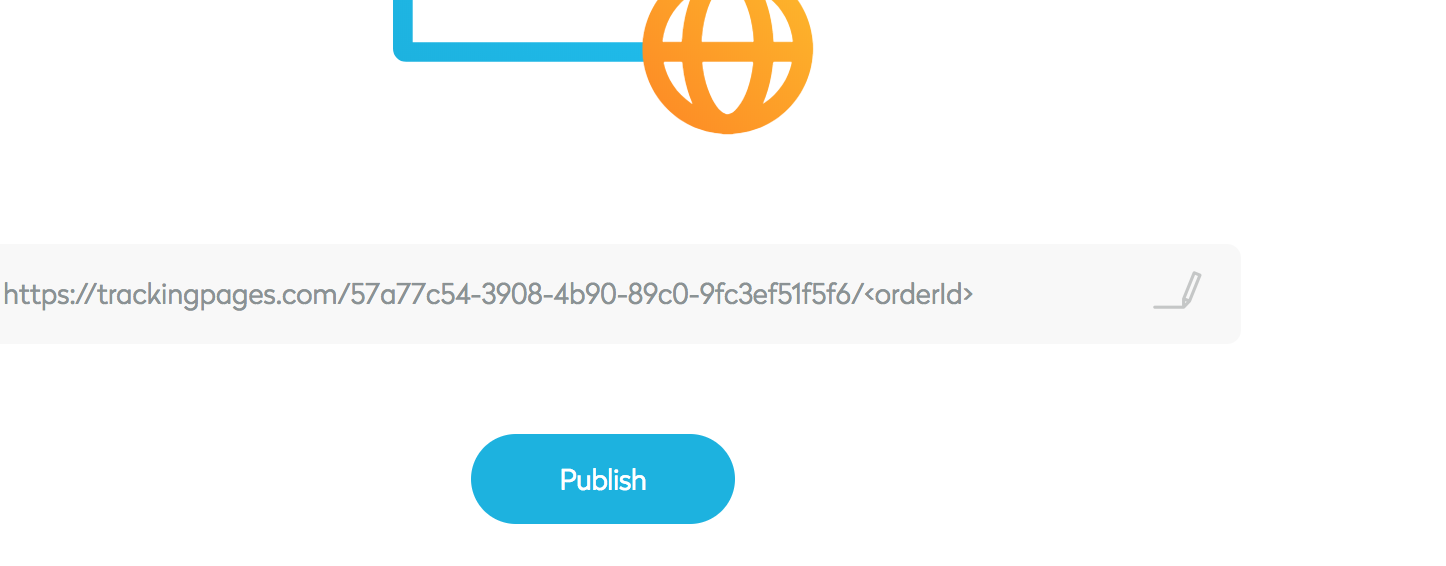
After publishing, implement the tracking page URL in your webshop and/or order and shipment confirmation emails. Replace orderId in the URL with a dynamic placeholder that inserts the respective order number. If you are using Seven Senders Portal Notifications, insert the dynamic placeholder TrackingPageUrl into your email template. This will automatically generate the correct tracking page link.
Further details about dynamic placeholders can be found in the respective article.
Installing your Embedded Widget
Once you have finished designing your Embedded Tracking Widget, click Install code in the top-right corner.
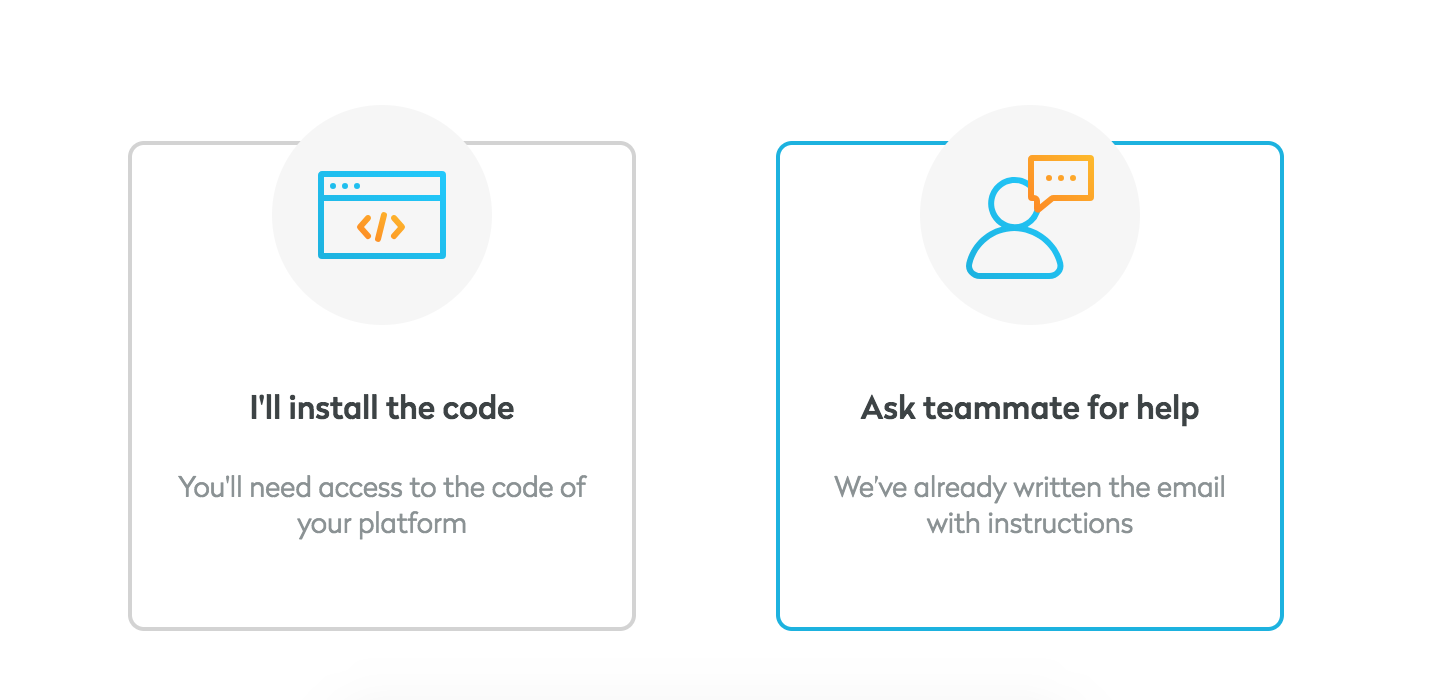
You will be presented with two options:
Option 1: I’ll install the code - You will receive:
- Your unique embedded widget code snippet
- Installation instructions
Option 2: Ask teammate for help - An email will be sent to your colleague containing:
- The unique embedded widget code
- A link to the installation guide
Zip Code Protection Off
<script type="text/javascript" src="https://widget.portal.sevensenders.com/widget.js"></script>
<script>
  sevensendersEmbeddedWidget({
      embeddedWidgetId: '849f1f87-4318-451d-ab33-2ca64373d924-74ded',
      elementId: <selector>,
      orderId: <orderId>
  });
</script>
Zip Code Protection On
If you would like to use Zip Code Protection, please contact your Key Account Manager (KAM) to activate this feature. Currently, the Zip Code Protection snippet is not displayed automatically in the Seven Senders Portal. Once activated, you will need to manually install the following snippet:
<script type="text/javascript" src="https://widget.portal.sevensenders.com/widget.js"></script>
<script>
  sevensendersEmbeddedWidget({
      embeddedWidgetId: '849f1f87-4318-451d-ab33-2ca64373d924-74ded',
      elementId: <selector>,
      orderId: <orderId>,
      zipCode: <zipCode>
  });
</script>
Code Explanation
The installation snippet consists of two parts:
-
Script Loader: The first
<script>tag loads the embedded widget library. -
Widget Initialization: The second
<script>initializes the widget using the following parameters:- embeddedWidgetId - Your unique widget identifier. Do not modify this value.
- elementId - The ID of the HTML container where the widget should be rendered. You must:
- Create a container element in your webshop
- Assign it the same ID
- Place it where the widget should appear
<div id="elementId"></div>
- orderId - Must match the order_id sent when creating the order via the Seven Senders API.
If the order ID does not match, the widget will return a 404 error.
Replace
<orderId>with a dynamic placeholder containing the correct order number. - zipCode (only required if Zip Code Protection is enabled). Must match the recipient's zip code provided when creating the shipment via the Seven Senders API. If the zip code does not match, the widget will return a 404 error.
Replace
<zipCode>with a dynamic placeholder containing the correct zip code.
-
Insert the script snippet inside the
<body>tags of your tracking page. -
Ensure the container with the defined elementId is placed at the desired position on the page.
Publishing the Widget
To display live tracking information:
- Click Publish at the bottom of the “I’ll install the code” page.
If the widget is not published, it will return a 404 error, even if the code is correctly implemented.
Displaying non-trackable shipments on the Embedded Widget
To indicate that a shipment is non-trackable, use the trackable parameter in the POST /shipment request.
- Set trackable = false when creating a non-trackable shipment.
- For validation purposes, a tracking code is still required.
- For detailed API specifications, please refer to API.Sevensenders.com.
Once a shipment is transferred as non-trackable, the Tracking Page automatically adjusts its layout. Only three events are displayed on the Tracking Page for non-trackable shipments (see screenshot below).
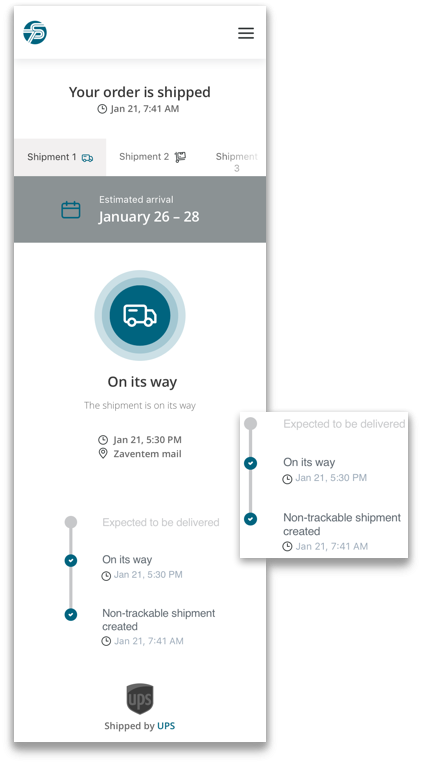
The table below shows the three events and their underlying logic:
| Event / Status Name | Logic |
|---|---|
| Non-trackable shipment created | Displayed once the shipment has been successfully created in the Seven Senders Portal. |
| On its way | Triggered based on the Planned Pickup Date parameter, once the planned pickup date lies in the past. |
| Expected to be delivered | Calculated as: Planned Pickup Date + Service Level Agreement (SLA). |
To display the event “Expected to be delivered”, Service Level Agreements (SLAs) must be configured in your Seven Senders Portal account. For more information, see Managing Service Level Agreements.
Updated about 2 hours ago