
Creating Email Design Templates using the Visual Editor
To create a new email template, navigate to Email Design Templates. You can find this page under Customer Notifications in the left sidebar menu of the Touchpoints section.
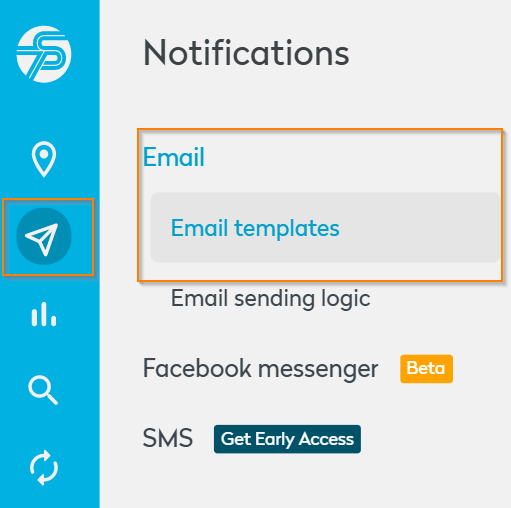
You will see a list of previously created templates. If no templates have been created yet, the list will be empty.
To create a new template, click Create new in the upper-right corner.
Template Setup
To start the creation process, configure the following parameters:
- Choose Localisation: Select the appropriate localisation for your template.
A localisation consists of:- A shop URL with the correct domain
- The corresponding language For more information about localisations, please refer to the dedicated localisation article.
- Name the Email Design Template: Choose a descriptive name that reflects the template’s use case. Example: Order Delayed
- Choose a Starting Point: Select how you want to build your template:
- Visual Editor (recommended)
- HTML Editor
To proceed with the Visual Editor, click Start editor.
Designing a Template (Visual Editor)
The editor page is divided into two sections:
- Left side: Editor panel
- Right side: Live preview
Changes made in the editor are reflected immediately in the preview. You can switch between mobile and desktop view using the icons above the preview panel.
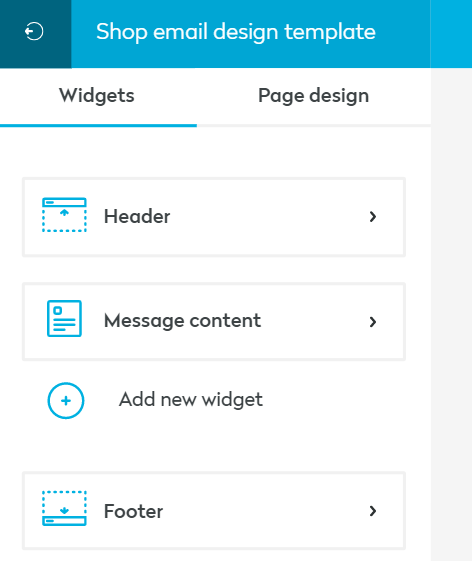
The editor contains two main tabs:
- Widgets: The Widgets tab defines the structure and content of the email. Widgets are displayed from top to bottom and can be edited individually.
- HEADER: The header appears at the top of the email and includes:
- Company logo
- Up to four customizable links
- MESSAGE CONTENT: This is the main section of the notification. It includes:
-
Status icon
-
Event title
-
Event description
To personalize the content, you can use Seven Senders Portal variables. These placeholders are automatically replaced with shipment or order data when the email is sent. Helpful Tip: Dynamic Placeholders
-
- HEADER: The header appears at the top of the email and includes:
| Event Type | Placeholder | Description |
|---|---|---|
| Order & Shipment Event | {{CustomerFirstName}} | Recipient's first name |
| Order & Shipment Event | {{CustomerLastName}} | Recipient's last name |
| Order & Shipment Event | {{CustomerAddress}} | Recipient's address |
| Order & Shipment Event | {{CustomerAddressCompany}} | Company name for delivery address |
| Order & Shipment Event | {{CustomerAddressZIPCode}} | Recipient's ZIP code |
| Order & Shipment Event | {{CustomerAddressCity}} | Recipient's city |
| Order & Shipment Event | {{CustomerAddressCountry}} | Recipient's country |
| Order & Shipment Event | {{CustomerAddressCountryISOCode}} | Recipient's ISO country code |
| Order & Shipment Event | {{CustomerEmailAddress}} | Recipient's email address |
| Order Event | {{TrackingPageUrl}} | Seven Senders Tracking Page URL |
| Order Event | {{ShopOrderId}} | Order reference in your system |
| Order Event | {{OrderCreationDate}} | Order creation date |
| Shipment Event | {{TrackingCode}} | Tracking number |
| Shipment Event | {{RealCarrierName}} | Carrier responsible for shipment |
| Shipment Event | {{ReferenceNumber}} | Shipment reference in your system |
| General | {{CurrentYear}} | Displays the current year |
By default, a template includes one Message Content widget. Additional widgets can be added using the Add new widget button.
Available widgets include:
- Shipment ETA: Displays the Estimated Time of Arrival (ETA).
- Button: Adds a clickable button linking to any URL. To link to your Tracking Page: Insert your Tracking Page URL
- Contact Shop: Displays your company’s: Phone number, Email address
- Contact Carrier: Displays carrier contact information.
- Footer: In the footer, you can choose whether to display:
- Copyright information
- Promotion for Seven Senders Portal
Note: Header and Footer positions are fixed and cannot be reordered. Other widgets can be reordered by dragging the sort icon next to each widget.
- Page Design
The Page Design tab allows you to customize the visual appearance of the email.
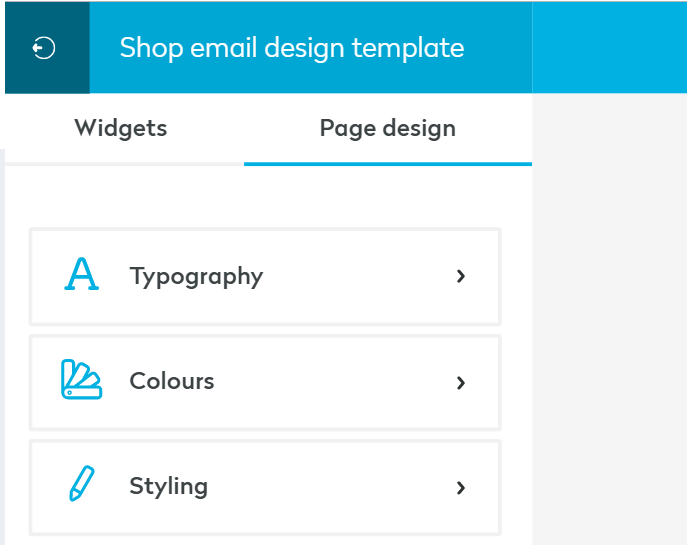
Typography
Define:
- Font types
- Font sizes
Seven Senders Portal supports standard fonts and Google Fonts.
Important: Not all email clients support Google Fonts.
Supported email clients include:
- Apple Mail
- Apple iPhone
- Apple iPad
- Outlook for Mac
- Samsung Mail
Fallback fonts are automatically used if a font is not supported.
Colours: Each section of the email can be customized with individual color settings.
Styling: Choose different styles for:
- Status icons
- Widget icons
A fully customized template can reflect your corporate identity and provide a professional customer experience.
Saving and Testing the Template
After editing your template, you can:
- Click Save
- Send a test email using the Send Test button (top-right corner)
Once saved, the template can be used in Sending Logics to automatically send notifications based on specific events.
Updated about 1 hour ago